
Overview
Affinity Integration
Sync RSVP and attendance data to Affinity CRM automatically. Build guest lists from Affinity contacts and push event participation back without manual data entry.
Two Sync Modes
Section titled “Two Sync Modes”The Affinity integration offers two independent sync modes. They serve different purposes and write different data to Affinity.
Global Sync maintains one canonical Affinity list for your entire organization. Every time someone RSVPs or checks in to any event, the event name and date get added to their contact record. Over time, each person accumulates a history of every event they engaged with.
Event List Sync connects a single Gatsby event to its own Affinity list. Instead of event names, it writes status values like “Accepted” or “Attended”. You trigger the initial sync manually, then changes sync automatically.
You can use one mode, the other, or both.
What Gets Written
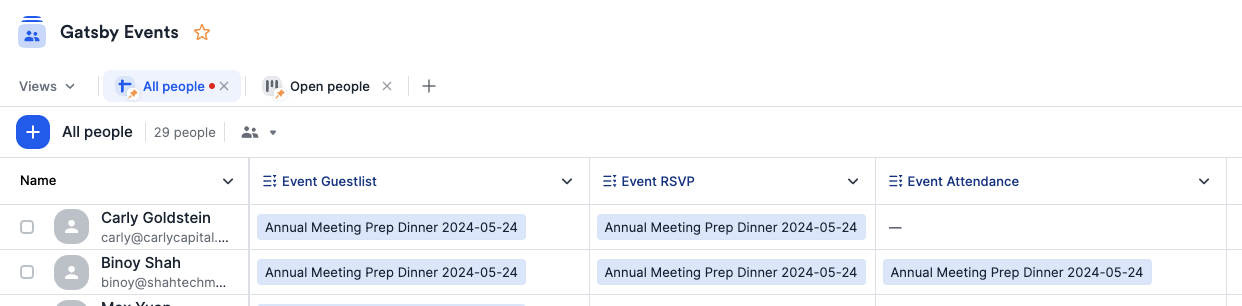
Section titled “What Gets Written”Three fields update on each contact’s record in your canonical Affinity list:
- Guest List records every event where a contact appeared on the guest list
- RSVP records events where a contact Accepted an invite
- Checkin records events where a contact was checked in
Each field stores event names with dates as dropdown values (e.g., “Annual Meeting Prep Dinner 2024-05-24”). Multiple values accumulate across events. Run five events, and an active guest’s fields show all five.
What Doesn’t Sync
Section titled “What Doesn’t Sync”The integration doesn’t pull contact enrichment down from Affinity. Company, title, dietary restrictions, custom fields: none of it transfers automatically. Gatsby captures event data and ships it back. Affinity stays your source of truth for contact details.
For enriched guest lists, export contacts from Affinity as CSV (with the fields you need for your event) and import them into your Gatsby guest list. Email addresses match existing contacts automatically. See the Import/Export documentation for CSV workflows.
Linking an Event
Section titled “Linking an Event”Each Gatsby event can connect to its own Affinity list. The list must already exist in Affinity.
Steps to link an event
-
Open your event in Gatsby.
-
Go to Event Details (the settings panel).
-
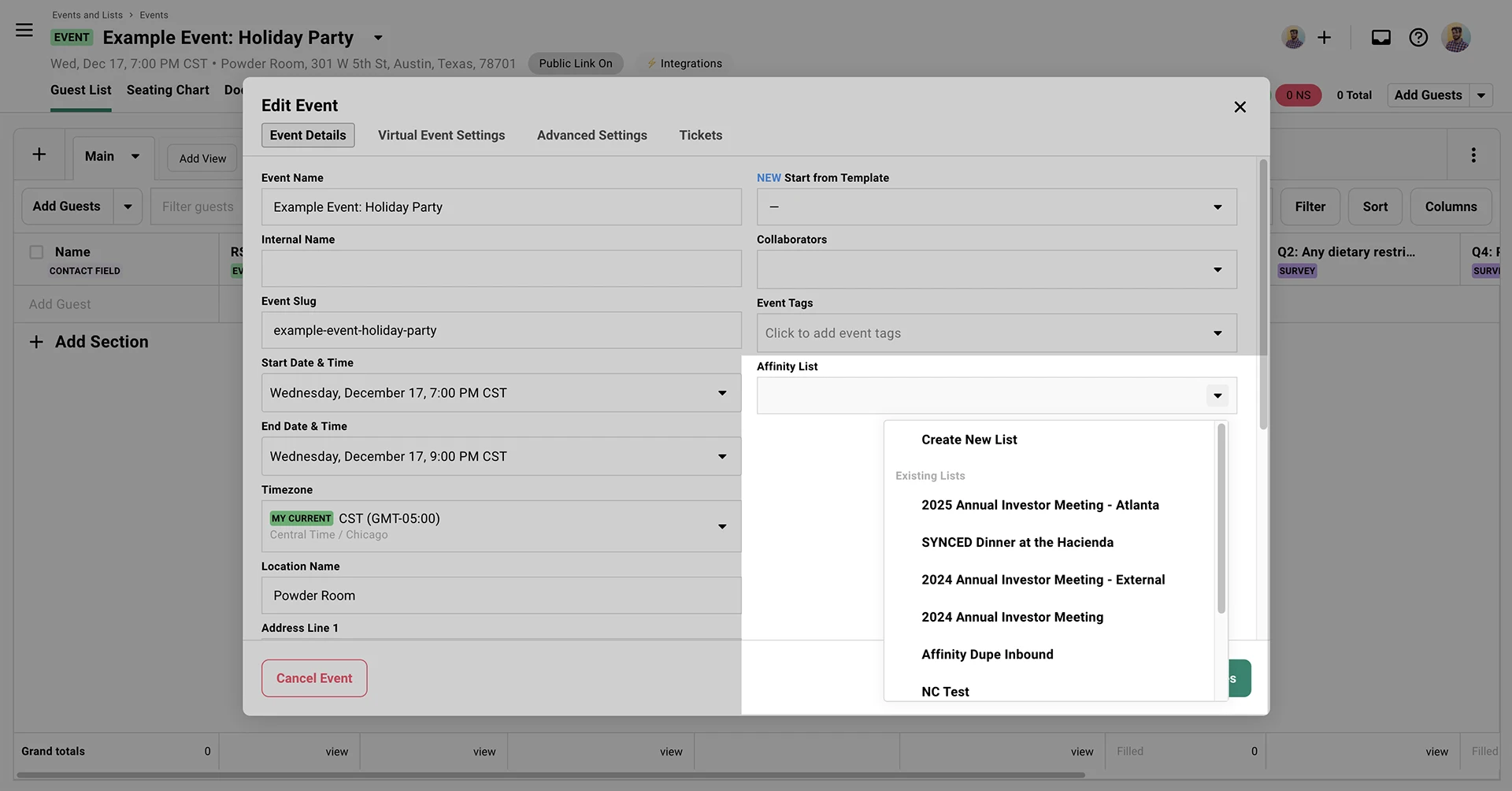
Select an Affinity list from the dropdown.
-
Click Save.
-
Click Sync to trigger the initial full sync. After that, changes sync automatically.
What Gets Written
Section titled “What Gets Written”Event List Sync writes status values to each person’s record on the linked Affinity list.
RSVP Status: Accepted, Declined, Maybe, Pending, Waitlisted
Attendance: Attended, No Show
Unlike Global Sync, there is one status value per person rather than a list of event names. Field names default to “RSVP Status” and “Attendance” but are customizable in your organization’s Affinity settings.
Inbound Person Creation
Section titled “Inbound Person Creation” Allowing Affinity to create guests in Gatsby
You can optionally enable inbound sync by toggling Allow Affinity to push changes to Gatsby. When enabled, adding someone to the linked Affinity list creates them in the Gatsby event automatically.
This only works for additions. Removing a person from an Affinity list does not remove them from the Gatsby event. Field value changes in Affinity are not synced back to Gatsby. Only list entry creation triggers an inbound action.
Initial Setup
Section titled “Initial Setup”-
Go to Team Settings » Linked Services » Affinity in Gatsby.
-
Get your Affinity API key from your Affinity account settings.
-
Paste the API key in Gatsby and click Connect.
The Affinity integration requires an additional subscription. Contact us on Slack or email for pricing details.
Setting Up Global Sync
Section titled “Setting Up Global Sync”-
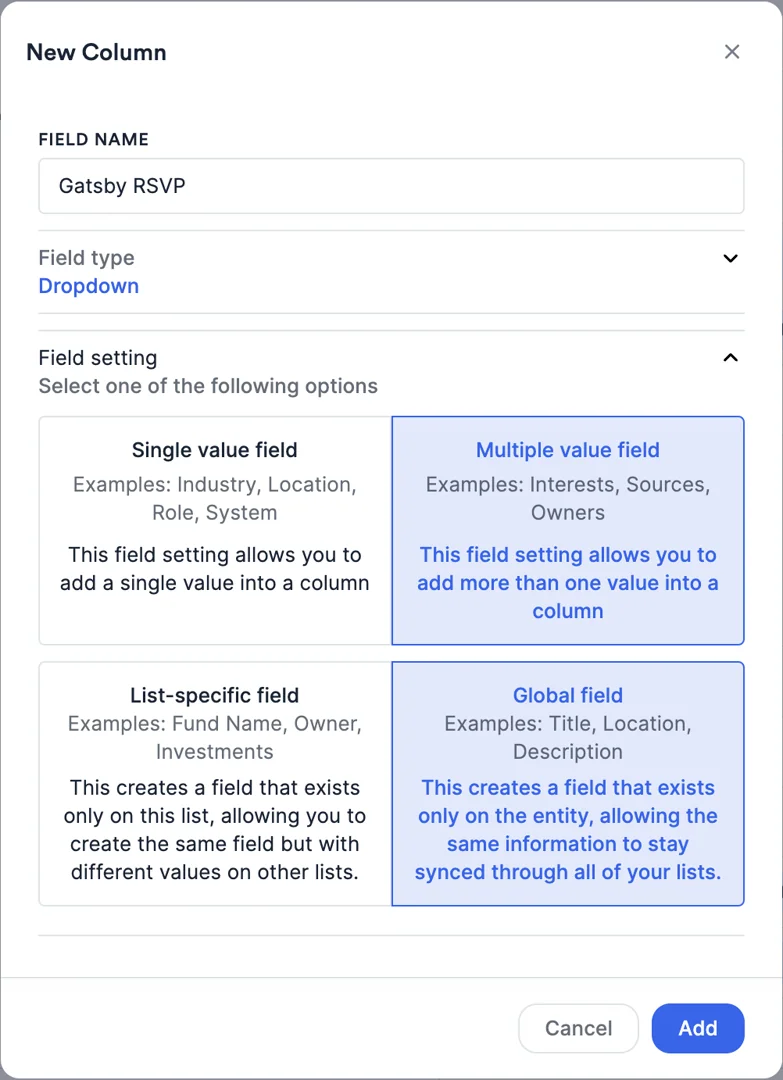
Create a People-type list in Affinity (e.g., “Gatsby Events”). Build from Scratch.
-
On that list, create three Dropdown fields. Each must be set to Multiple Value:
- One for guest list tracking
- One for RSVP tracking
- One for check-in tracking
-
Enable Global List Sync.
-
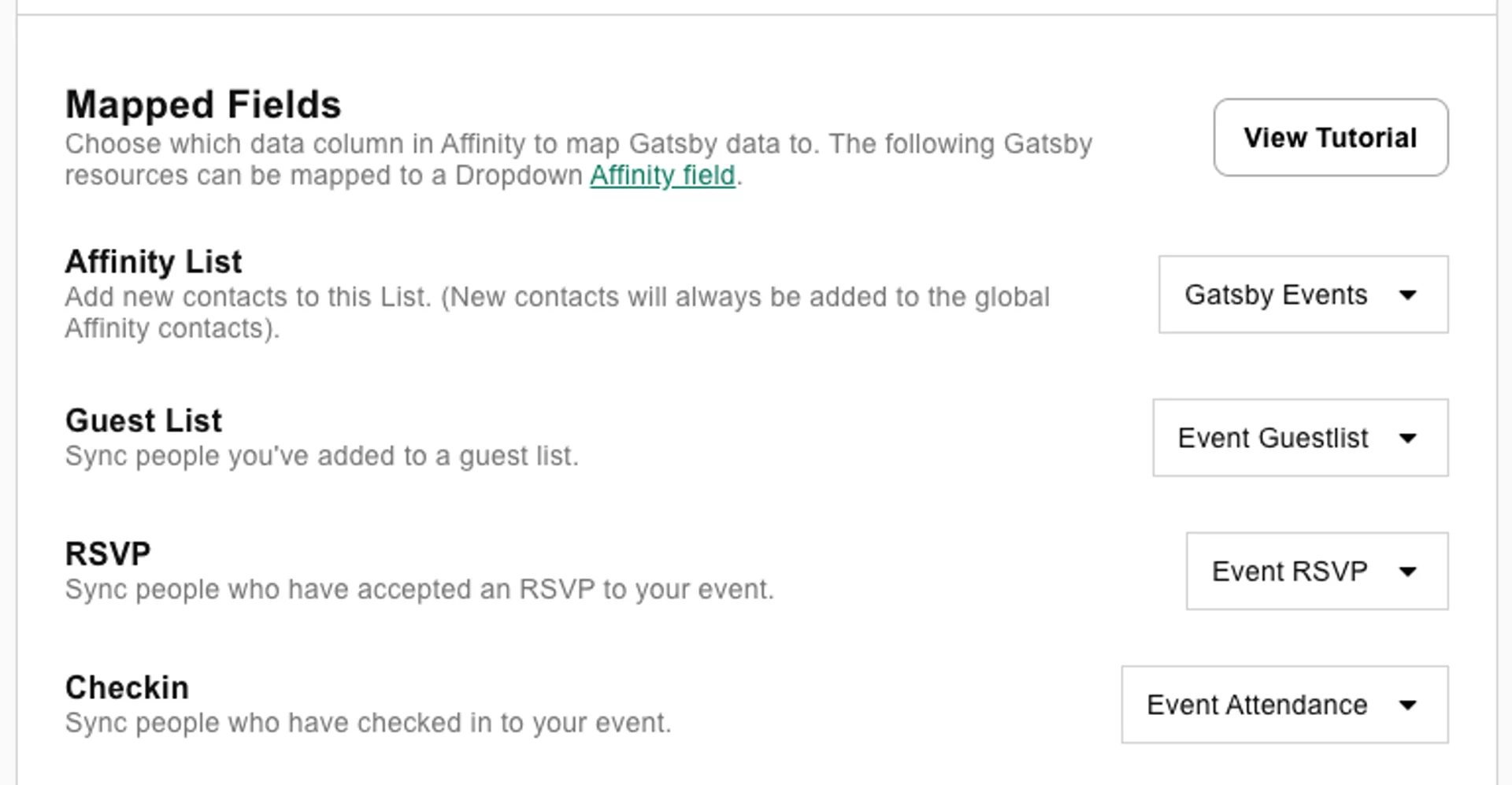
In Gatsby under Team Settings » Linked Services » Affinity, select your canonical list from the dropdown.
-
Map each Gatsby field to the corresponding Affinity field: Guest List, RSVP, and Checkin.
Event data syncs automatically from this point. Guests who RSVP or check in update in Affinity within seconds.
If you rename any of these fields in Affinity, you must update the field mapping in Gatsby under Team Settings » Linked Services » Affinity. Gatsby won’t detect the new field names automatically.
Setting Up Event List Sync
Section titled “Setting Up Event List Sync” Link an event
-
Create a new list in Affinity for the event (People type).
-
Open your event in Gatsby and go to Event Details.
-
Select the Affinity list from the dropdown.
-
Click Save, then click Sync (from the Integrations menu inside of the event) to trigger the initial sync.
After the initial sync, changes sync automatically.
Custom field names (optional)
By default, Event List Sync creates fields named “RSVP Status” and “Attendance” on the linked list. You can customize these names in Team Settings » Linked Services » Affinity. The integration uses your custom names when creating or looking up fields.
If you later rename these fields in Affinity, update the names in Gatsby to match. Gatsby won’t detect the change automatically.
Enable inbound sync (optional)
Toggle Allow Affinity to push changes to Gatsby to let Affinity list additions create guests in your Gatsby event. Only additions sync inbound. Removing someone from the Affinity list does not remove them from Gatsby.
Common Questions
Section titled “Common Questions” Does this cost extra?
Yes. The Affinity integration is an add-on to standard Gatsby pricing. Contact us on Slack or email for current pricing.
Which sync mode should I use?
Use Global Sync if you want a running history of every event each contact has engaged with across your organization. Use Event List Sync if you want per-event rosters with RSVP status and attendance. You can use both on separate lists.
Can I use both modes?
Yes, but use separate Affinity lists and separate fields for each mode. They write different data types — Global Sync writes event name strings (e.g., “Annual Meeting 2026-03-15”) and Event List Sync writes status strings (e.g., “Accepted”). If both modes write to the same fields, the values conflict and corrupt each other’s data.
Does data sync bidirectionally?
Person creation can sync from Affinity to Gatsby if you enable inbound webhooks on a linked Event List Sync list. RSVP and attendance data flows from Gatsby to Affinity only. Removing someone from an Affinity list does not remove them from Gatsby.
When does data sync?
Global Sync is automatic. Every RSVP and check-in triggers a sync immediately. Event List Sync requires a manual initial trigger (click “Sync”), then changes sync automatically after that.
Are there rate limits?
Affinity enforces a rate limit of 900 requests per 70 seconds. The integration handles this automatically, but large initial syncs (e.g., a 5,000-person event list) may take time to complete.
What are the requirements?
- API key from your Affinity account
- Dropdown fields (Multiple Value) on People-type lists
- Gatsby add-on subscription